Table of contents
Open Table of contents
Introduction
Purpose
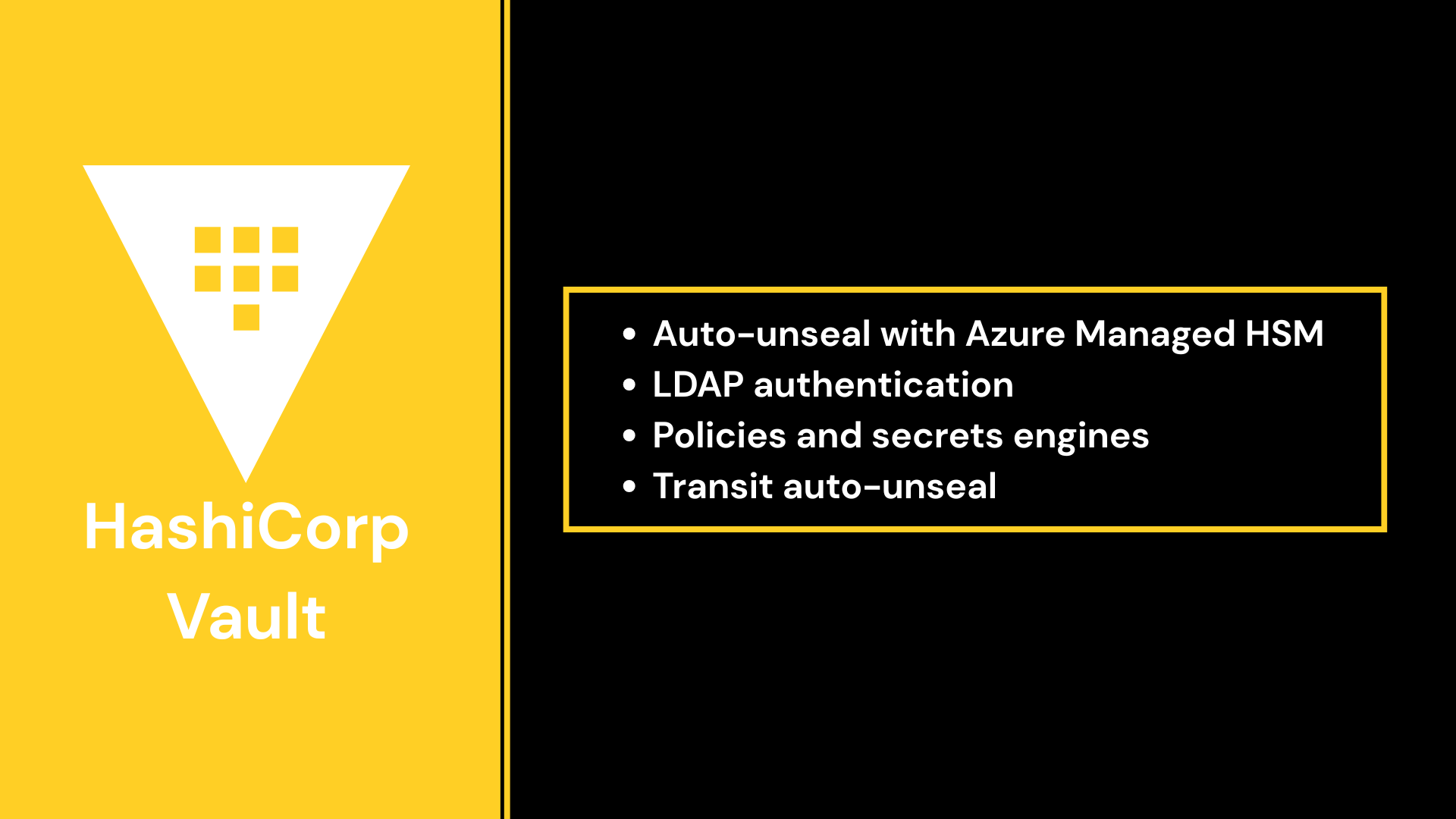
In this post we’ll build a miniature enterprise HashiCorp Vault deployment across three VMs, end to end. (Last time I ran the OpenBao fork; here we’re on upstream Vault - same concepts, vault instead of bao.) Four pieces stack up:
- Auto-unseal with Azure Managed HSM - VAULT01 delegates unsealing to an RSA key in a cloud HSM instead of a manual Shamir key ceremony on every restart.
- LDAP authentication - LDAP01 runs OpenLDAP as a stand-in for Active Directory; directory groups map to Vault policies, so identity lives in one place.
- Policies and secrets engines - a KV v2 layout with team-scoped ACLs: isolated team spaces, a shared read-only area, an auditor role, and a delegated admin group.
- Transit auto-unseal - VAULT02 unseals against VAULT01’s Transit engine, demonstrating Vault-to-Vault unsealing.
Prerequisites
- An Azure account with a subscription and a dedicated resource group, plus the Azure CLI (
az) on your workstation. - Three Debian VMs (2 vCPU / 2 GB RAM / 20 GB disk each). I used VMware; any hypervisor works.
- Basic comfort with the
vaultCLI and Linux service management.
Architecture
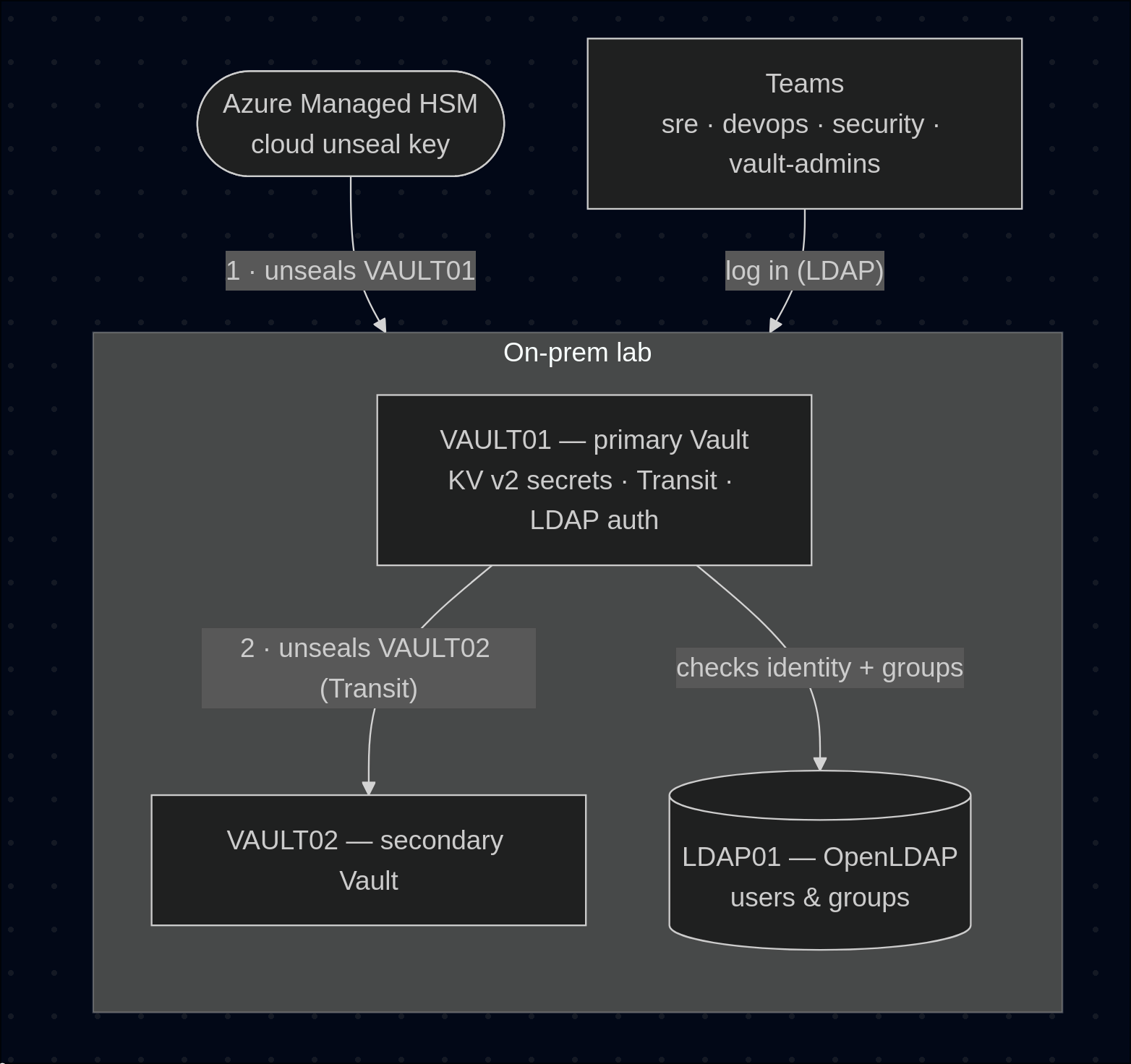
Three machines, two of them Vault servers unsealed in different ways, one directory:
| Host | Role | Unsealed by |
|---|---|---|
VAULT01 | primary Vault server | Azure Managed HSM (cloud auto-unseal) |
VAULT02 | secondary Vault server | VAULT01’s Transit engine |
LDAP01 | OpenLDAP directory (AD stand-in) | - |
The unseal chain is the interesting part: Azure HSM unseals VAULT01 → VAULT01’s Transit engine unseals VAULT02. VAULT02’s root key never touches a human; it’s wrapped by a key that lives inside VAULT01.
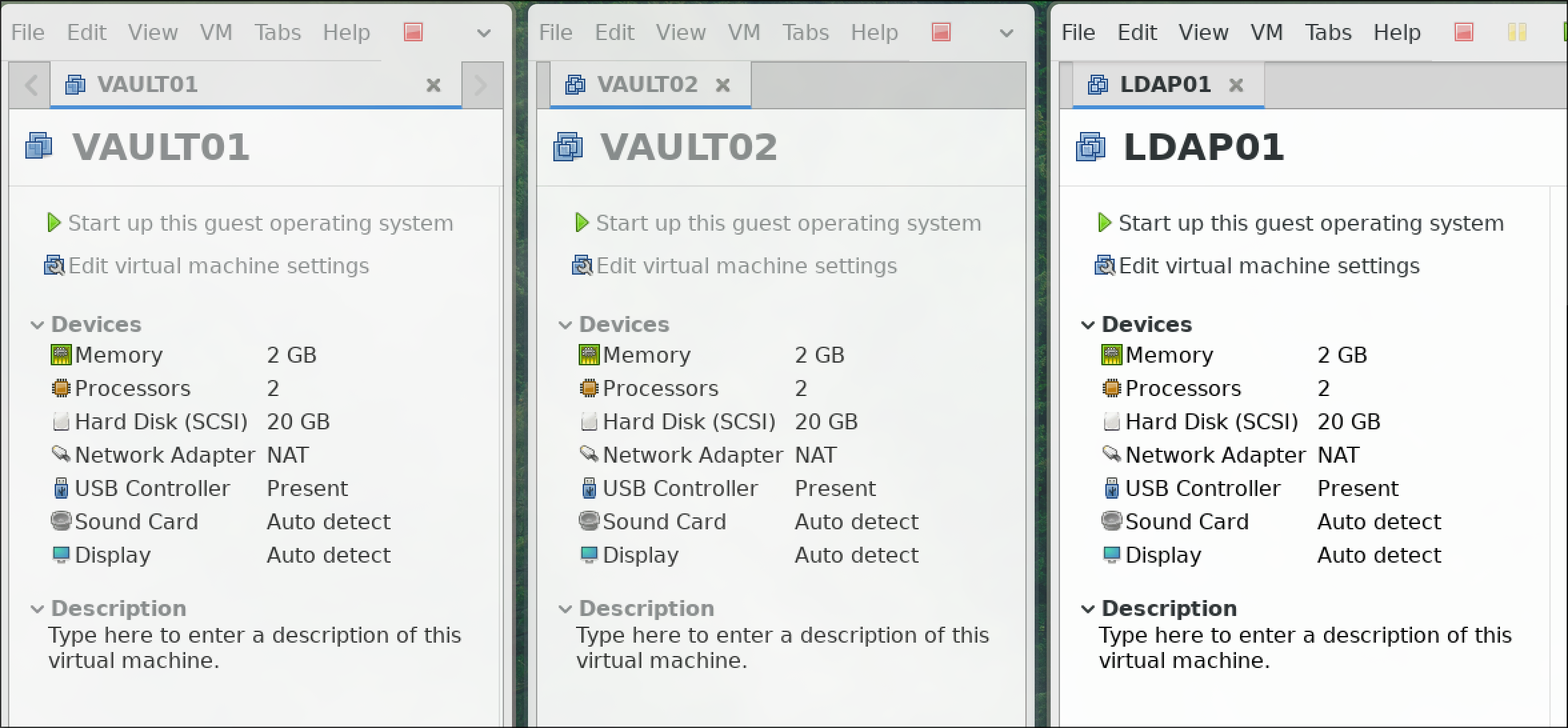
Debian VMs
Install Debian on all three from the netinst ISO - no desktop environment, SSH server enabled. I named the hosts VAULT01, VAULT02, and LDAP01, then apt update && apt upgrade-d and added sudo, vim, gpg, and btop.
A quick shortcut: install one host, then clone it twice and change the hostname in /etc/hostname and /etc/hosts on each clone.
Vault with Azure HSM Auto-unseal
Vault starts sealed: its data is encrypted with a root key that itself is encrypted, and someone normally has to supply a quorum of Shamir key shares to reconstruct it on every start. Auto-unseal hands that job to a cloud KMS/HSM instead - so a rebooted server comes back ready with nobody standing by. We’ll use an Azure Managed HSM.
Cost warning - this is not a free-tier lab. An Azure Managed HSM is a dedicated, single-tenant HSM pool, and it bills a flat ~$3,500/month from the moment it’s created, used or not. Spin it up, run the lab, and tear it down the same day:
az keyvault delete --hsm-name the-vault-unseal -g <rg>
az keyvault purge  --hsm-name the-vault-unseal -l <region>
The
purgematters:deleteonly soft-deletes, and a soft-deleted HSM keeps billing until the retention window (--retention-days 7above) elapses. Purge stops the meter now.
Install the Vault binary
On VAULT01, from the official APT repo:
wget -O - https://apt.releases.hashicorp.com/gpg | sudo gpg --dearmor -o /usr/share/keyrings/hashicorp-archive-keyring.gpg
echo "deb [arch=$(dpkg --print-architecture) signed-by=/usr/share/keyrings/hashicorp-archive-keyring.gpg] https://apt.releases.hashicorp.com $(grep -oP '(?<=UBUNTU_CODENAME=).*' /etc/os-release || lsb_release -cs) main" | sudo tee /etc/apt/sources.list.d/hashicorp.list
sudo apt update && sudo apt install vault
Provision and activate the Managed HSM
Do this from your workstation with the Azure CLI. You can also click through the portal; the CLI is easier to reproduce.
1. Gather your IDs
Run these as your normal login.
# Subscription ID + tenant ID
az account show --query "{sub:id, tenant:tenantId}" -o table

# Resource groups you can see
az group list --query "[].name" -o table

# Your own user objectId (for --administrators)
az ad signed-in-user show --query id -o tsv
2. Create a deployment service principal
It will be used only to provision the HSM; delete it afterwards.
az ad sp create-for-rbac --name hsm-deployer \
  --role "Managed HSM Contributor" \
  --scopes /subscriptions/<sub-id>/resourceGroups/<rg>
Note the appId and password from the output - the password is shown only once.
3. Log in as the deployment SP
az login --service-principal -u <appId> -p <secret> --tenant <tenant-id>4. Create the Managed HSM
az keyvault create --hsm-name the-vault-unseal -g <rg> -l <region> \
  --administrators <your-user-objectId> --retention-days 7 \
  --no-wait
5. Poll provisioning as your user
The SP lacks subscription-scope read for polling.
az login
az keyvault show --hsm-name the-vault-unseal -g <rg> \
  --query properties.provisioningState -o tsv
6. Activate the HSM
A fresh Managed HSM is provisioned but inactive - you can’t create keys until you download its security domain, encrypted under wrapping keys you control.
for i in 1 2 3; do
  openssl req -newkey rsa:2048 -nodes -keyout sd-key-$i.key \
    -x509 -days 3650 -out sd-key-$i.cer -subj "/CN=hsm-sd-$i"
done

az keyvault security-domain download --hsm-name the-vault-unseal \
  --sd-wrapping-keys sd-key-1.cer sd-key-2.cer sd-key-3.cer \
  --sd-quorum 2 \
  --security-domain-file the-vault-unseal-SD.json
This is the disaster-recovery root. The three
.keyfiles plusSD.jsonare the only way to recover the HSM (or migrate it to another region). Store them offline, in separate locations. Lose the quorum and the HSM - and everything Vault sealed with it - is gone.
Prepare the unseal key and Vault’s service principal
7. Grant yourself crypto permissions
On the HSM, ARM roles and HSM-local roles are separate.
az keyvault role assignment create --hsm-name the-vault-unseal \
  --role "Managed HSM Crypto User" \
  --assignee <your-user-objectId> --scope /
8. Create a dedicated service principal for Vault
This is the identity Vault authenticates with at runtime - it needs no ARM role, only HSM-local RBAC.
az ad sp create-for-rbac --name vault-autounseal
SP_OID=$(az ad sp show --id <vault-appId> --query id -o tsv)
9. Create the unseal key
az keyvault key create --hsm-name the-vault-unseal \
  --name vault-unseal-key --kty RSA-HSM --size 3072 \
  --ops wrapKey unwrapKey
10. Scope the Vault SP to that single key
Not the whole HSM - least privilege.
az keyvault role assignment create --hsm-name the-vault-unseal \
  --role "Managed HSM Crypto User" \
  --assignee $SP_OID --scope /keys/vault-unseal-key
11. Smoke-test as the Vault SP
Optional, but confirms the grant before Vault depends on it.
az login --service-principal -u <vault-appId> -p '<vault-sp-secret>' \
  -t <tenant-id> --allow-no-subscriptions
az keyvault key show --hsm-name the-vault-unseal --name vault-unseal-key --query key.kid
az logout && az login
Configure Vault auto-unseal
Point Vault at that key with a seal "azurekeyvault" block in /etc/vault.d/vault.hcl:
ui = true

storage "file" {
  path = "/opt/vault/data"
}

# HTTPS listener
listener "tcp" {
  address       = "0.0.0.0:8200"
  tls_cert_file = "/opt/vault/tls/tls.crt"
  tls_key_file  = "/opt/vault/tls/tls.key"
}

seal "azurekeyvault" {
  tenant_id     = "<tenant-id>"
  client_id     = "<vault-appId>"
  client_secret = "<vault-sp-secret>"
  vault_name    = "the-vault-unseal"
  key_name      = "vault-unseal-key"
  resource      = "managedhsm.azure.net"   # required - without it Vault targets standard Key Vault (vault.azure.net)
}
The one line that trips everyone up:
resource = "managedhsm.azure.net". Leave it out and Vault tries to reach a standard Key Vault endpoint (vault.azure.net), which your Managed HSM doesn’t answer, and unseal fails with an opaque auth error.
Start and initialize:
chmod 640 /etc/vault.d/vault.hcl && chown root:vault /etc/vault.d/vault.hcl
sudo systemctl enable --now vault
export VAULT_ADDR=https://127.0.0.1:8200   # https now - TLS listener
export VAULT_SKIP_VERIFY=true              # self-signed cert in the lab
vault operator init
vault status            # Sealed: false, Seal Type: azurekeyvault
sudo systemctl restart vault && vault status   # verify it unseals itself
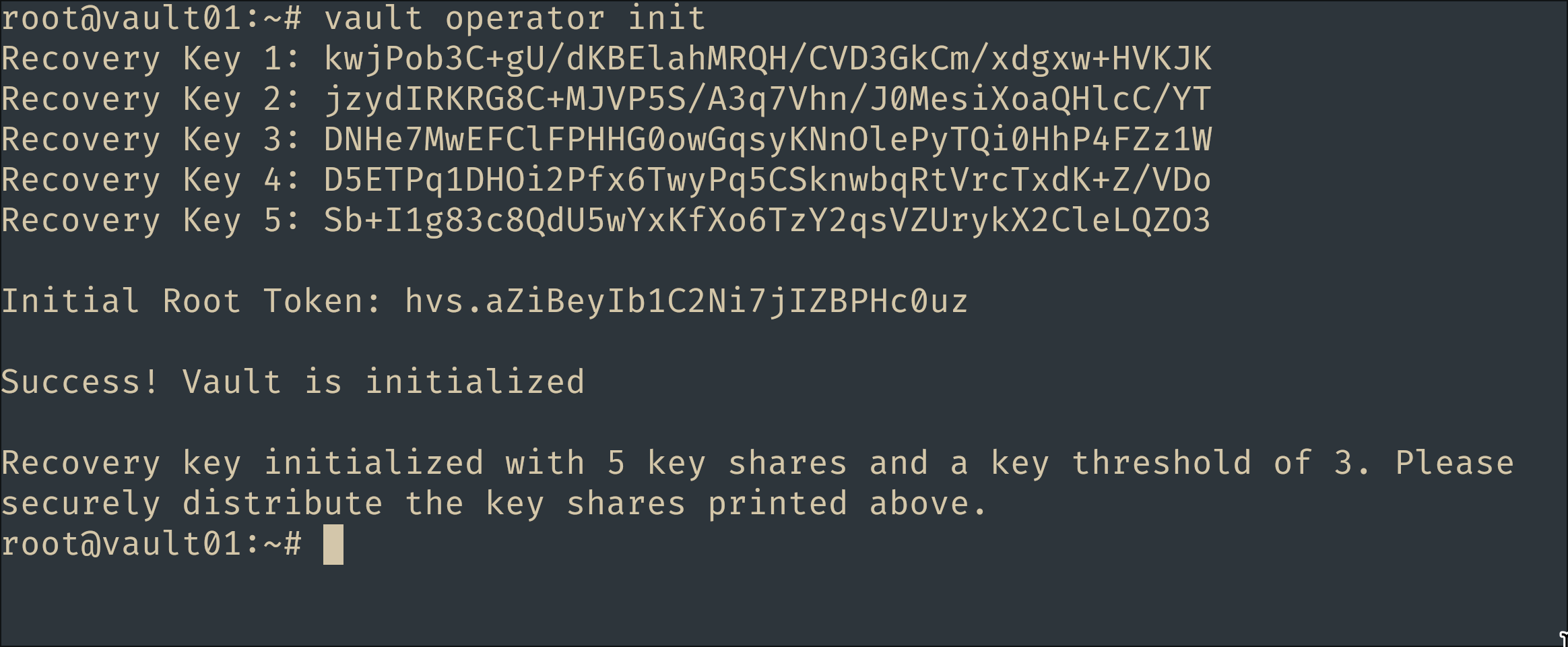
With auto-unseal, vault operator init gives you recovery keys (for generate-root, not for unsealing) and the initial root token:
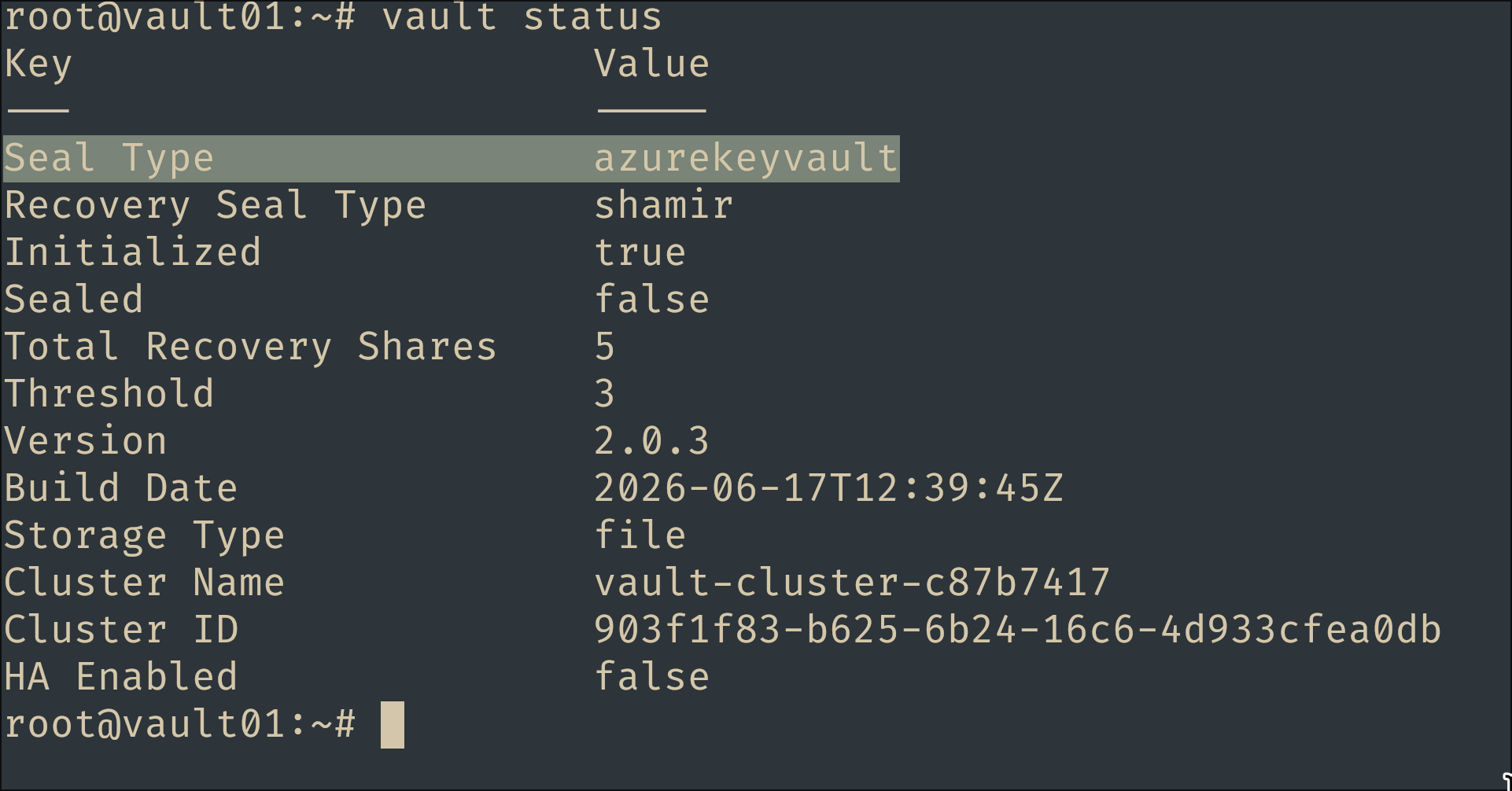
Status right after init - sealed false, seal type azurekeyvault:
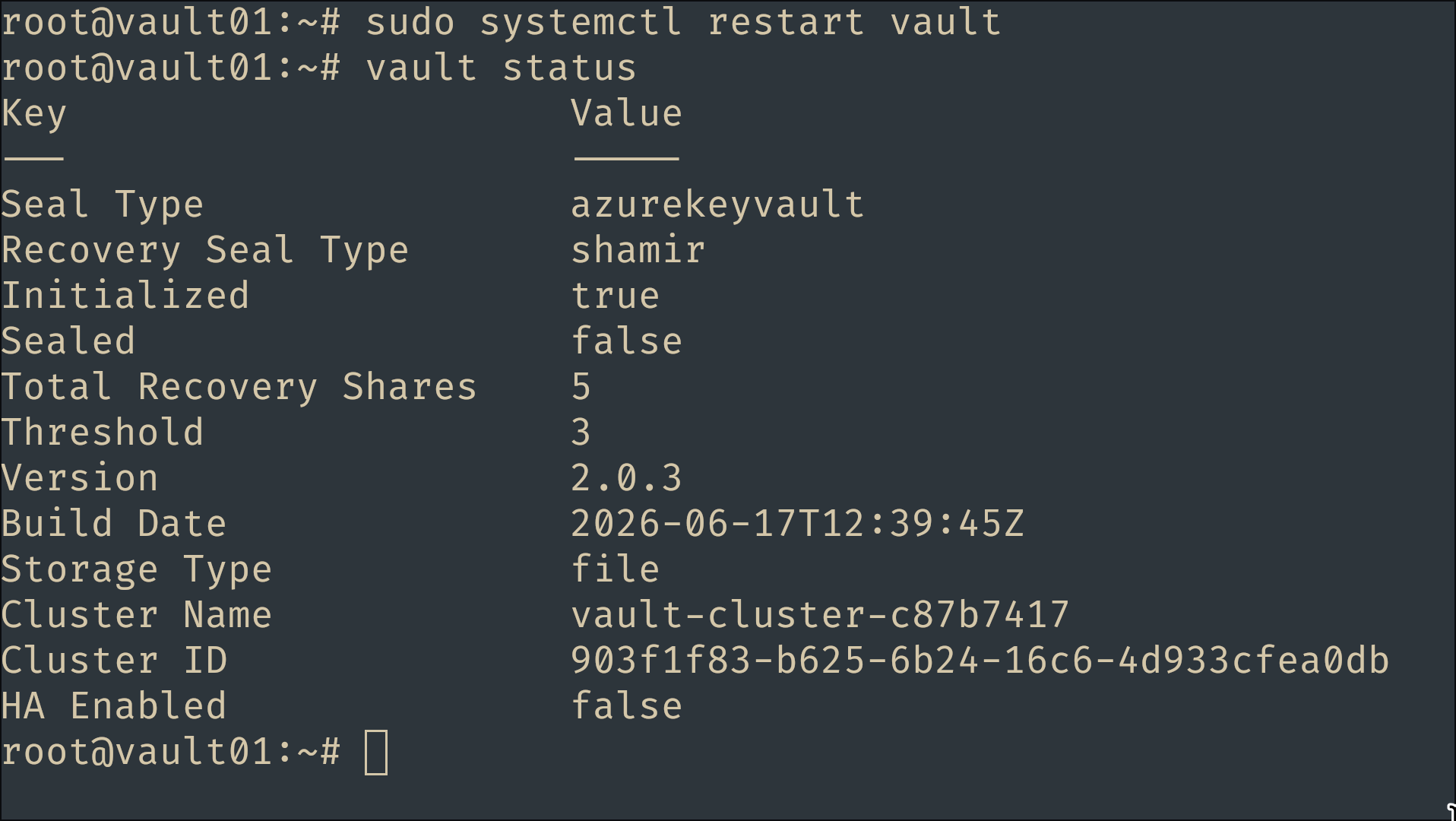
And the real test - restart the service and it comes back already unsealed, no key ceremony:
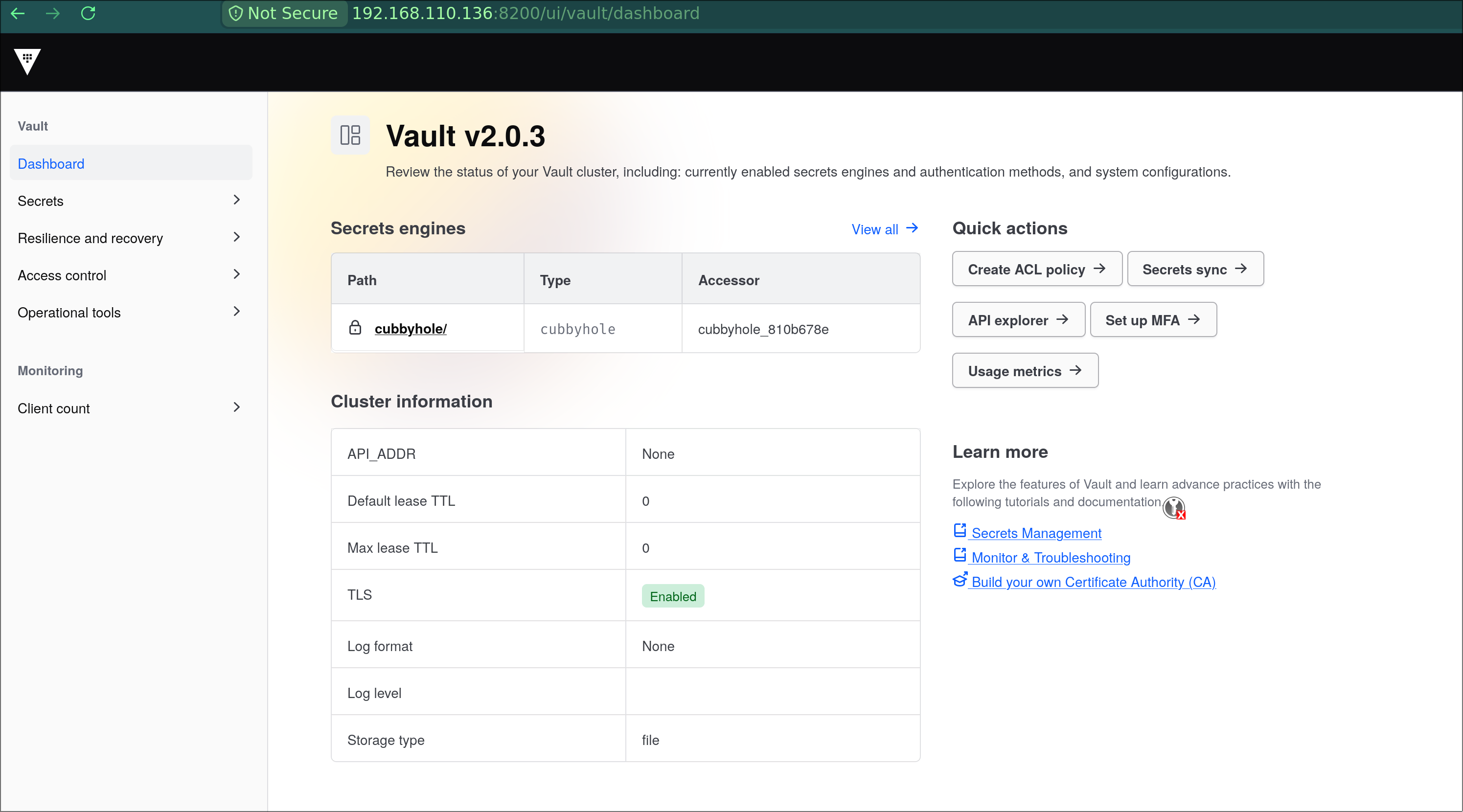
Voilà. Log in to the UI at https://<vault01-ip>:8200 with the root token:
LDAP Auth Method
Root tokens don’t scale to a team. In a real org, people already exist in a directory - so we point Vault at one and let group membership decide what each person can do. Vault speaks many auth methods: last time it was GitLab’s JWT/OIDC for CI jobs; here it’s LDAP for people. To simulate an Active Directory environment we’ll stand up OpenLDAP on LDAP01.
OpenLDAP setup
Following the Ubuntu OpenLDAP guide:
sudo apt install slapd ldap-utils
sudo dpkg-reconfigure slapd
# Omit config? No | DNS domain: example.com | Org: Example Inc
# set admin password | Purge old DB: Yes | Move old DB: Yes
Sanity-check the empty tree and the admin bind:
ldapsearch -x -LLL -H ldap:/// -b dc=example,dc=com   # the data tree
ldapwhoami -x -D cn=admin,dc=example,dc=com -W          # admin auth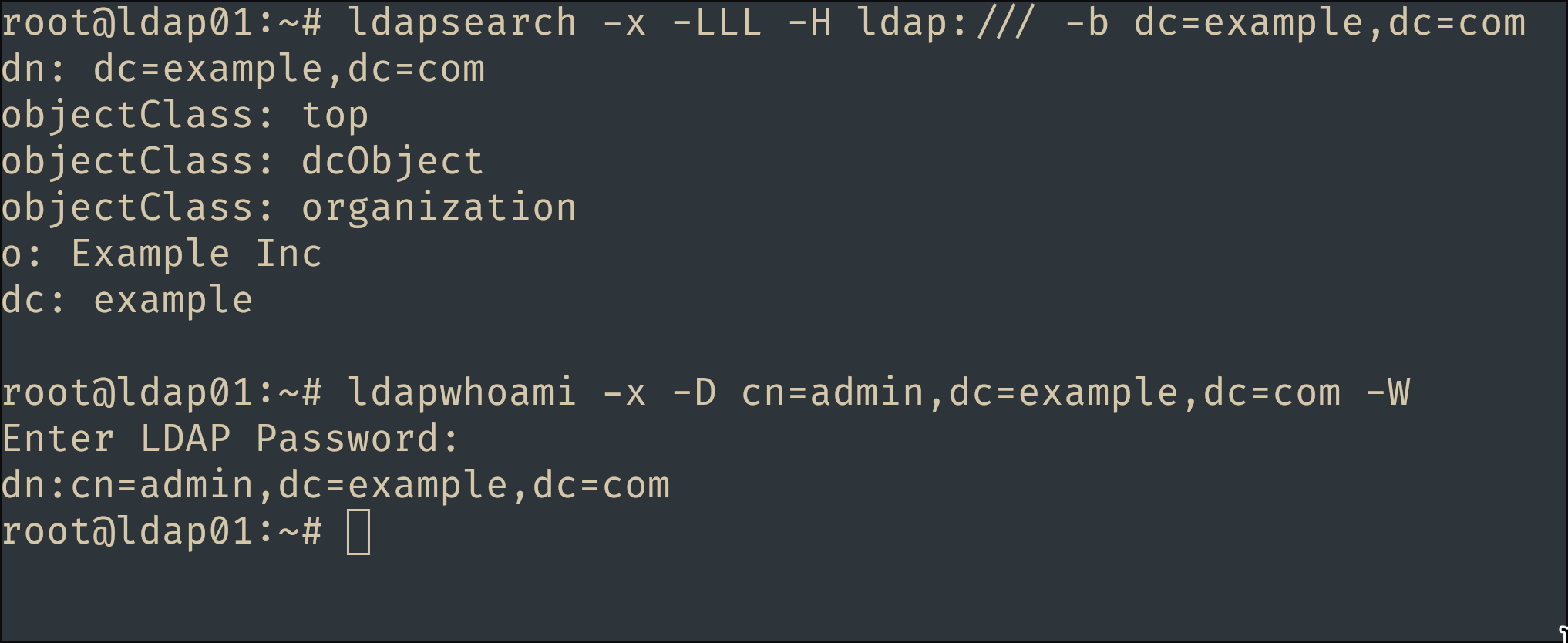
Populate the directory
Here’s the design - 14 users, four groups, with some deliberate overlap so the policy tests are interesting later:
dc=example,dc=com
├── ou=people                      14 users, uid = first initial + surname
└── ou=groups   (groupOfNames)
    ├── cn=sre           asmith bjones cwhite dbrown edavis
    ├── cn=devops        fmiller gwilson hmoore itaylor edavis
    ├── cn=security      janderson kthomas ljackson mharris nmartin
    └── cn=vault-admins  asmith fmiller janderson      ← privileged, cross-team
Note the overlaps that make the ACL matrix worth testing: edavis is in both sre and devops, and asmith / fmiller / janderson are also vault-admins.
Rather than hand-write 14 near-identical entries, generate the LDIF with a loop and load it. One shared lab password keeps the tests simple:
PW_HASH=$(slappasswd -s 'Password123!')   # one lab password for everyone

# 14 people (uid = first initial + surname) and 4 groups with deliberate overlap
people=(
  "Alice Smith"  "Bob Jones"    "Carol White" "David Brown" "Emma Davis"
  "Frank Miller" "Grace Wilson" "Henry Moore" "Isla Taylor" "Jack Anderson"
  "Kate Thomas"  "Liam Jackson" "Mia Harris"  "Noah Martin"
)
declare -A groups=(
  [sre]="asmith bjones cwhite dbrown edavis"
  [devops]="fmiller gwilson hmoore itaylor edavis"
  [security]="janderson kthomas ljackson mharris nmartin"
  [vault-admins]="asmith fmiller janderson"
)

{
  printf 'dn: ou=people,dc=example,dc=com\nobjectClass: organizationalUnit\nou: people\n\n'
  printf 'dn: ou=groups,dc=example,dc=com\nobjectClass: organizationalUnit\nou: groups\n\n'

  for name in "${people[@]}"; do
    first=${name%% *}; last=${name##* }
    uid=$(echo "${first:0:1}$last"        | tr '[:upper:]' '[:lower:]')
    mail=$(echo "$first.$last@example.com" | tr '[:upper:]' '[:lower:]')
    cat << EOF
dn: uid=$uid,ou=people,dc=example,dc=com
objectClass: inetOrgPerson
uid: $uid
cn: $name
sn: $last
mail: $mail
userPassword: $PW_HASH

EOF
  done

  for cn in sre devops security vault-admins; do
    printf 'dn: cn=%s,ou=groups,dc=example,dc=com\nobjectClass: groupOfNames\ncn: %s\n' "$cn" "$cn"
    for uid in ${groups[$cn]}; do
      printf 'member: uid=%s,ou=people,dc=example,dc=com\n' "$uid"
    done
    echo
  done
} > bootstrap.ldif

ldapadd -x -D cn=admin,dc=example,dc=com -W -f bootstrap.ldif
Enable and configure the LDAP auth method
Back on VAULT01, as root:
vault login          # the root token
vault auth enable ldap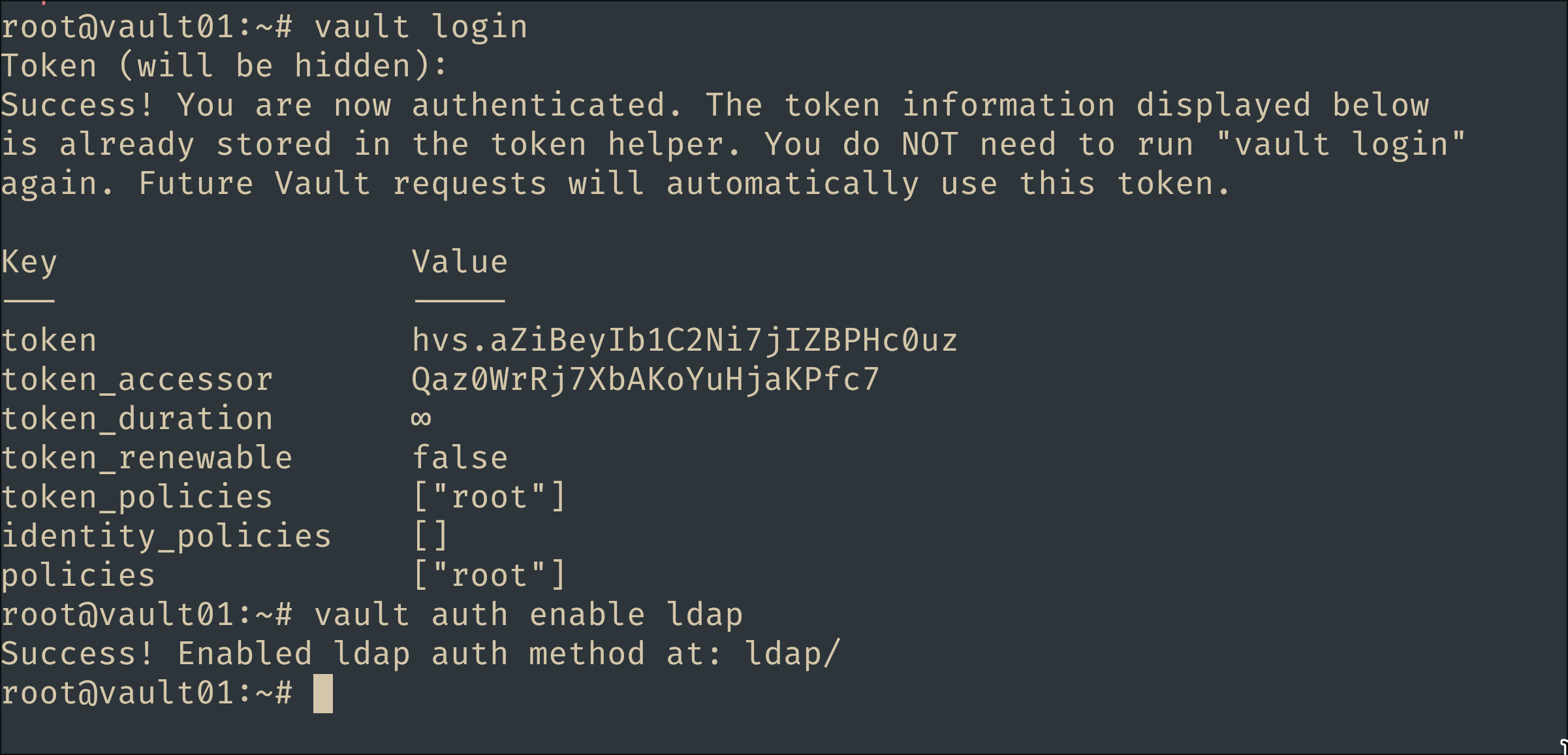
Point it at LDAP01. The groupfilter is the key line - it resolves which groups a user belongs to by matching member against the user’s DN:
vault write auth/ldap/config \
  url="ldap://<ldap01-ip>:389" \
  userdn="ou=people,dc=example,dc=com" \
  userattr="uid" \
  groupdn="ou=groups,dc=example,dc=com" \
  groupattr="cn" \
  groupfilter="(&(objectClass=groupOfNames)(member={{.UserDN}}))" \
  token_ttl=1h token_max_ttl=4h
Then map each LDAP group to a Vault policy of the same name. The policies don’t exist yet - that’s fine, mappings are just strings until a token is minted:
vault write auth/ldap/groups/sre          policies=sre
vault write auth/ldap/groups/devops       policies=devops
vault write auth/ldap/groups/security     policies=security
vault write auth/ldap/groups/vault-admins policies=vault-admins
Test group resolution
Before writing a single policy, confirm the identity plumbing - the right policies should attach based purely on directory membership:
vault login -method=ldap username=bjones password='Password123!'
# token_policies    [default sre]                    single team

vault login -method=ldap username=asmith password='Password123!'
# token_policies    [default sre vault-admins]       team + privileged

# negative test - a wrong password must fail with a bind error
vault login -method=ldap username=bjones password='wrong'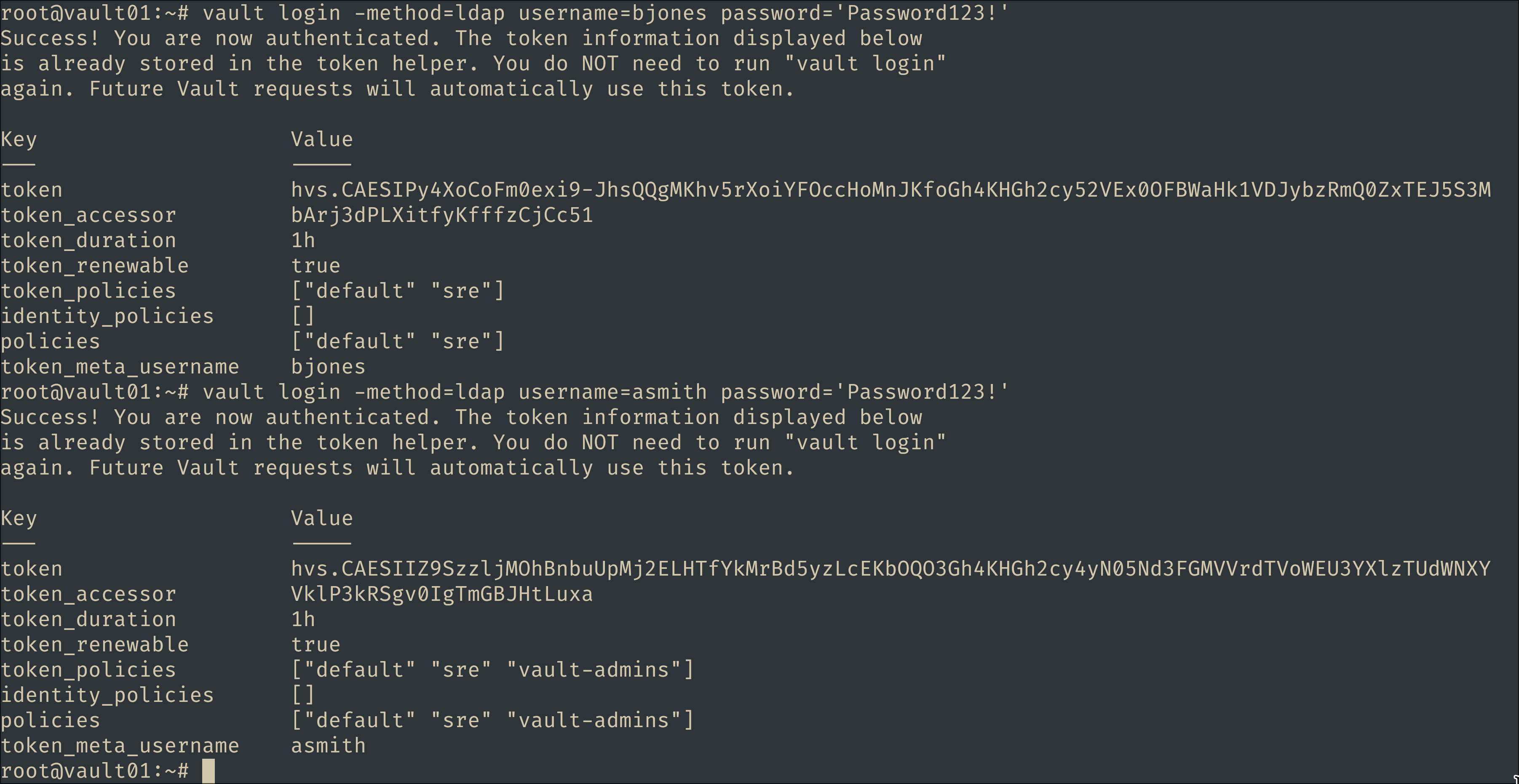
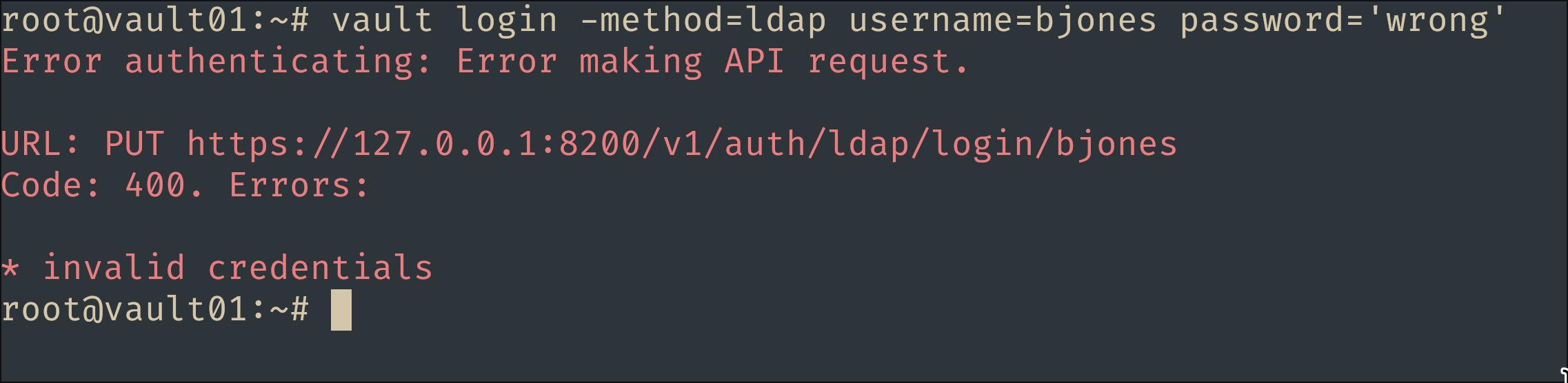
bjones gets sre; asmith gets sre and vault-admins; the wrong password is rejected at the LDAP bind. Identity works - now we give those policy names teeth.
Policies and Secrets Engines
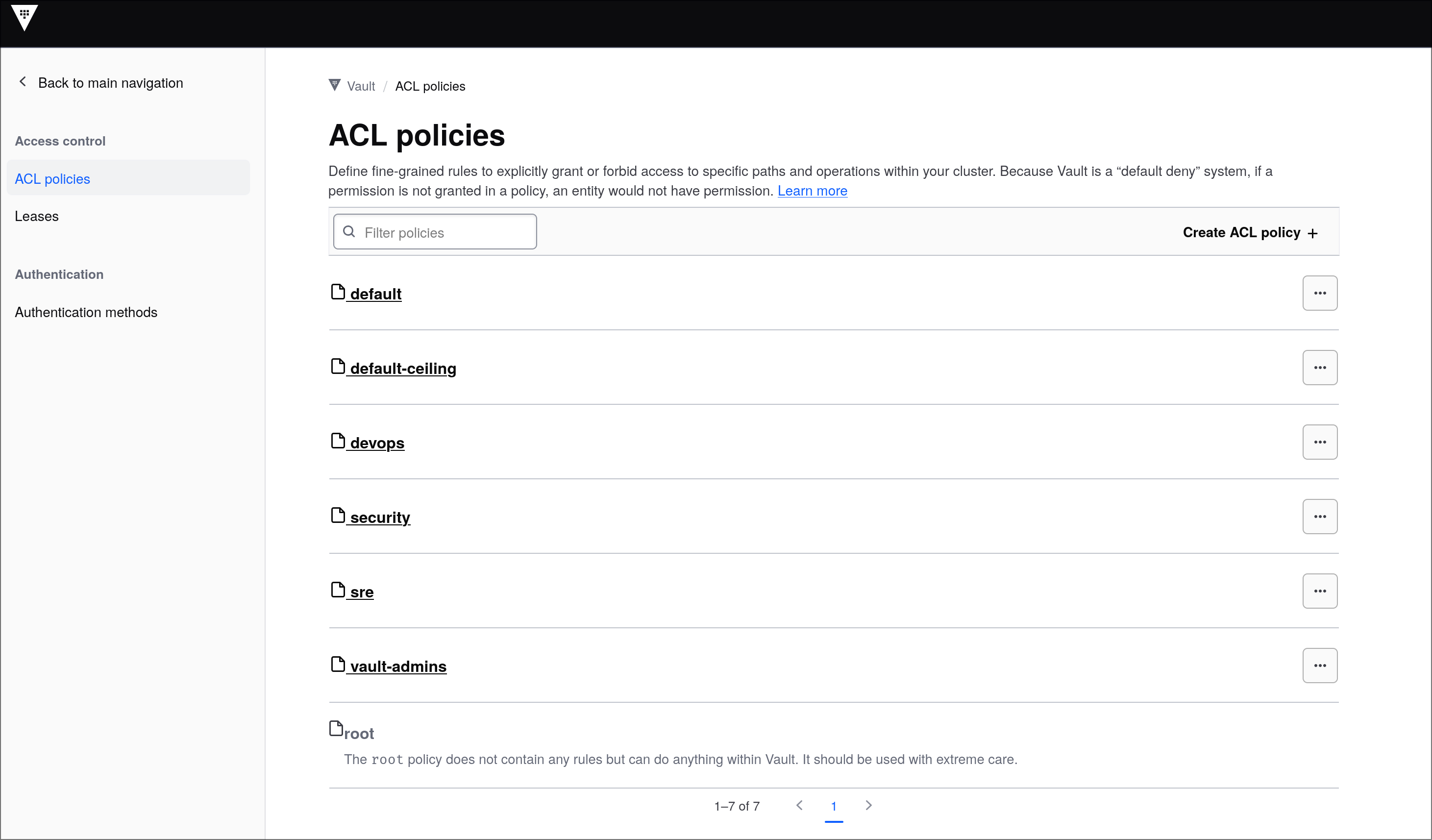
The goal is a KV v2 layout where each team owns its own space, shares a common area read-only, security can audit everything, and admins can run the show without the root token - the same least-privilege instinct as the per-project policies in the OpenBao lab, just organized by team instead of by app:
secret/
├── sre/*        sre: full CRUD
├── devops/*     devops: full CRUD
├── security/*   security: full CRUD
└── shared/*     every team: read-only        (writable by vault-admins)

security      → additionally read-only on ALL of secret/* (auditor role)
vault-admins  → full secret/* + manage policies, auth methods, mounts
Enable the KV v2 engine
vault login   # root token
vault secrets enable -path=secret kv-v2
KV v2’s split paths bite everyone once. Secret data lives under
secret/data/…, but listing and metadata live undersecret/metadata/…. A policy that only grantssecret/data/*lets you read values but not browse them - so every rule below covers both trees.
Team policies
sre and devops are identical bar the name, so a loop writes both - full lifecycle on their own tree, read-only on shared:
for team in sre devops; do
vault policy write $team - << EOF
# Own team space - full lifecycle
path "secret/data/$team/*" {
  capabilities = ["create", "read", "update", "delete", "list"]
}
path "secret/metadata/$team/*" {
  capabilities = ["read", "list"]
}

# Shared area - read-only
path "secret/data/shared/*" {
  capabilities = ["read"]
}
path "secret/metadata/shared/*" {
  capabilities = ["read", "list"]
}

# Allow browsing the mount root in CLI/UI
path "secret/metadata" {
  capabilities = ["list"]
}
EOF
done
security is the same idea plus an auditor grant: read-only across the whole mount. Vault always applies the most specific matching path, so the full-CRUD rule on security/* still wins over the read-only glob:
vault policy write security - << 'EOF'
path "secret/data/security/*" {
  capabilities = ["create", "read", "update", "delete", "list"]
}
path "secret/metadata/security/*" {
  capabilities = ["read", "list"]
}

# Auditor: read-only visibility across the whole mount
path "secret/data/*" {
  capabilities = ["read"]
}
path "secret/metadata/*" {
  capabilities = ["read", "list"]
}
path "secret/metadata" {
  capabilities = ["list"]
}
EOF
The admin policy
vault-admins is delegated administration - everything needed to run this lab without the root token: the KV mount, ACL policies, auth methods, and secrets engines.
vault policy write vault-admins - << 'EOF'
# Full control of the KV mount
path "secret/*" {
  capabilities = ["create", "read", "update", "delete", "list", "sudo"]
}
path "secret/data/*" {
  capabilities = ["create", "read", "update", "delete", "list"]
}
path "secret/metadata/*" {
  capabilities = ["create", "read", "update", "delete", "list"]
}

# Re-declare shared at its EXACT path so admin caps UNION with the teams'
# read-only rule instead of being shadowed by it (see the callout below).
path "secret/data/shared/*" {
  capabilities = ["create", "read", "update", "delete", "list"]
}
path "secret/metadata/shared/*" {
  capabilities = ["create", "read", "update", "delete", "list"]
}

# Manage ACL policies
path "sys/policies/acl/*" {
  capabilities = ["create", "read", "update", "delete", "list"]
}
path "sys/policies/acl" {
  capabilities = ["list"]
}

# Manage auth methods (enable/disable/tune + their config)
path "sys/auth/*" {
  capabilities = ["create", "read", "update", "delete", "sudo"]
}
path "sys/auth" {
  capabilities = ["read"]
}
path "auth/*" {
  capabilities = ["create", "read", "update", "delete", "list", "sudo"]
}

# Manage secrets engines
path "sys/mounts/*" {
  capabilities = ["create", "read", "update", "delete", "list"]
}
path "sys/mounts" {
  capabilities = ["read"]
}

# Status
path "sys/health" {
  capabilities = ["read", "sudo"]
}
EOF

vault policy list
The ACL lesson worth stealing: most-specific path wins, capabilities only union on identical paths. When several policies attach to one token, Vault doesn’t just OR everything together. For a given request path it applies the single most specific matching path across all attached policies, and capabilities union only when the path strings are identical.
asmithhas bothsreandvault-admins. Writing tosecret/data/shared/smtp, thesrerulesecret/data/shared/*(read-only) is more specific than the admin’ssecret/data/*glob - so it wins, andasmithgets a 403 despite being an admin. That’s the bug I hit live. The fix is those redundant-looking lines above: re-declaringsecret/data/shared/*insidevault-adminsat the exact same path makes the two rules union to full CRUD. Debug it without guessing:vault token capabilities <token> secret/data/shared/smtp # -> the effective caps on that pathOne edge survives on purpose: each team’s
secret/metadata/<team>/*[read, list]still shadows the admin’ssecret/metadata/*glob, soasmithcan’tvault kv metadata deleteundersre/. Closing it the same way - re-declaring each team’s metadata path in the admin policy - is left as an exercise.
Seed some test data
As root (or an admin), drop one secret into each space:
vault kv put secret/sre/database    username=sre-app  password=sre-db-pass
vault kv put secret/devops/ci-token token=glpat-11112222
vault kv put secret/security/siem   api_key=siem-key-9999
vault kv put secret/shared/smtp     host=smtp.example.com port=587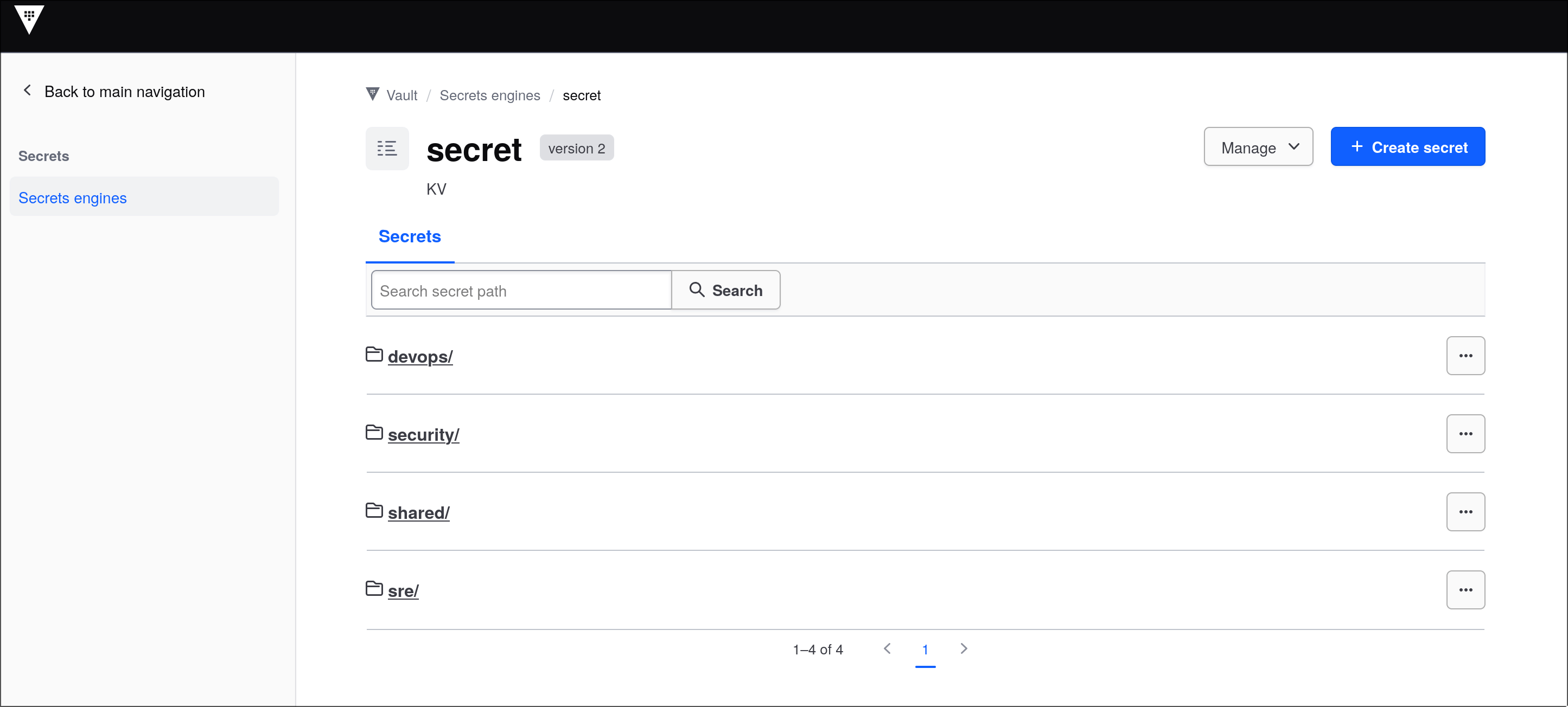
Prove the ACLs
Now log in as different people and watch the boundaries hold - ✔ allowed, ✘ denied:
# bjones - sre only
vault login -method=ldap username=bjones password='Password123!'
vault kv get secret/sre/database        # ✔
vault kv put secret/sre/new-entry x=1   # ✔
vault kv get secret/devops/ci-token     # ✘ 403 permission denied
vault kv get secret/shared/smtp         # ✔  shared is readable
vault kv put secret/shared/smtp host=x  # ✘ 403 - shared is read-only

# edavis - sre + devops merged
vault login -method=ldap username=edavis password='Password123!'
vault kv put secret/sre/edavis-test a=1     # ✔
vault kv put secret/devops/edavis-test b=2  # ✔  both team policies apply

# kthomas - security: auditor reads, cannot write outside own space
vault login -method=ldap username=kthomas password='Password123!'
vault kv get secret/sre/database         # ✔ read via the auditor glob
vault kv put secret/sre/database x=1     # ✘ 403
vault kv put secret/security/note k=v    # ✔ own space

# asmith - sre + vault-admins
vault login -method=ldap username=asmith password='Password123!'
vault policy list                                                # ✔ admin capability
vault kv put secret/shared/smtp host=smtp2.example.com port=587  # ✔ admin writes shared
Every allow and deny lines up with the group design: single-team isolation, merged policies for cross-team members, auditor read-without-write, and delegated admin.
Retire the root token. With
vault-adminsproven, day-to-day work needs no root token - revoke it withvault token revoke <root-token>. It can always be regenerated later withvault operator generate-rootusing the recovery keys. A live root token is the single scariest credential in a Vault deployment; don’t leave it lying around.
Transit Auto-unseal (VAULT02 unsealed by VAULT01)
Azure HSM is one way to auto-unseal. Another is Vault’s own Transit engine: one Vault wraps another Vault’s root key. We’ll make VAULT01 the unseal provider for a brand-new VAULT02.
The chain becomes: Azure HSM unseals VAULT01 → VAULT01’s Transit engine unseals VAULT02.
On VAULT01 - engine, key, policy, token
1. Enable Transit and create the wrapping key
vault secrets enable transit
vault write -f transit/keys/autounseal
2. A minimal policy
Encrypt/decrypt on that one key, nothing else.
vault policy write autounseal - << 'EOF'
path "transit/encrypt/autounseal" {
  capabilities = ["update"]
}
path "transit/decrypt/autounseal" {
  capabilities = ["update"]
}
EOF
3. A token for VAULT02
vault token create -orphan -policy=autounseal \
-period=24h -display-name=vault02-unseal-orphan- not a child of your admin token, so it survives that token’s revocation.-period=24h- renewable forever; VAULT02’s seal client auto-renews it. If VAULT02 stays offline longer than the period, the token dies and unseal fails - mint a new one and update the config.
On VAULT02 - install and configure
Install Vault with the same APT steps as VAULT01, then write /etc/vault.d/vault.hcl with a seal "transit" block pointing back at VAULT01:
ui = true

storage "file" {
  path = "/opt/vault/data"
}

listener "tcp" {
  address       = "0.0.0.0:8200"
  tls_cert_file = "/opt/vault/tls/tls.crt"
  tls_key_file  = "/opt/vault/tls/tls.key"
}

seal "transit" {
  address         = "https://<vault01-ip>:8200"
  token           = "<vault02-unseal-token-from-step-3>"
  key_name        = "autounseal"
  mount_path      = "transit/"
  tls_skip_verify = "true"   # lab only - VAULT01's cert has no IP SANs
}
Start, init, verify:
chmod 640 /etc/vault.d/vault.hcl && chown root:vault /etc/vault.d/vault.hcl
sudo systemctl enable --now vault
export VAULT_ADDR=https://127.0.0.1:8200
export VAULT_SKIP_VERIFY=true
vault operator init      # recovery keys + a fresh root token - store them
vault status             # Sealed: false, Seal Type: transit
sudo systemctl restart vault && vault status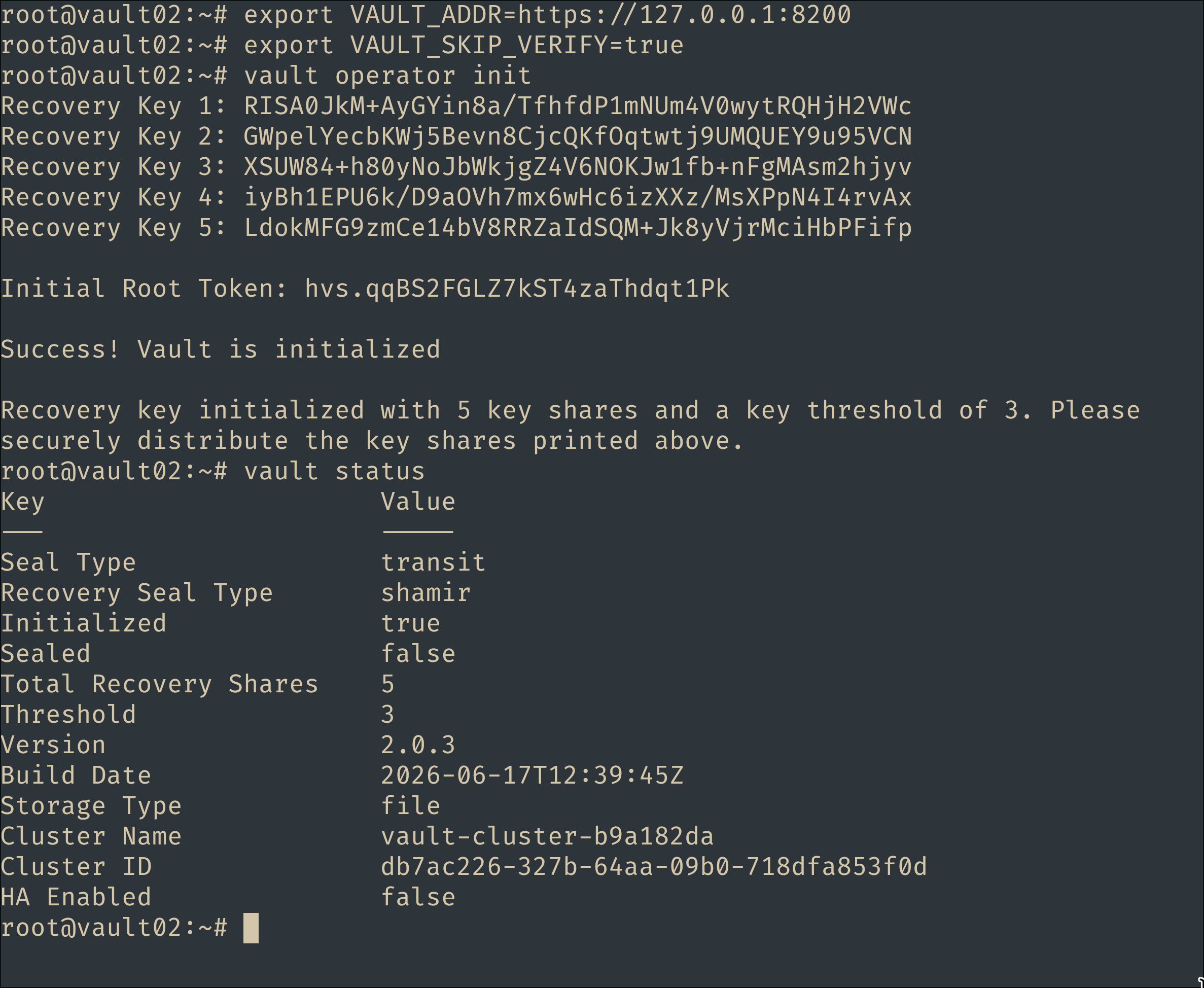
The dependency chain in action
This is the whole point - VAULT02 can only unseal while VAULT01 is up. Stop VAULT01 and restart VAULT02, and it can’t come back:
# on VAULT01
sudo systemctl stop vault

# on VAULT02
sudo systemctl restart vault
vault status                      # unreachable / sealed
sudo journalctl -u vault -n 20    # transit seal errors against VAULT01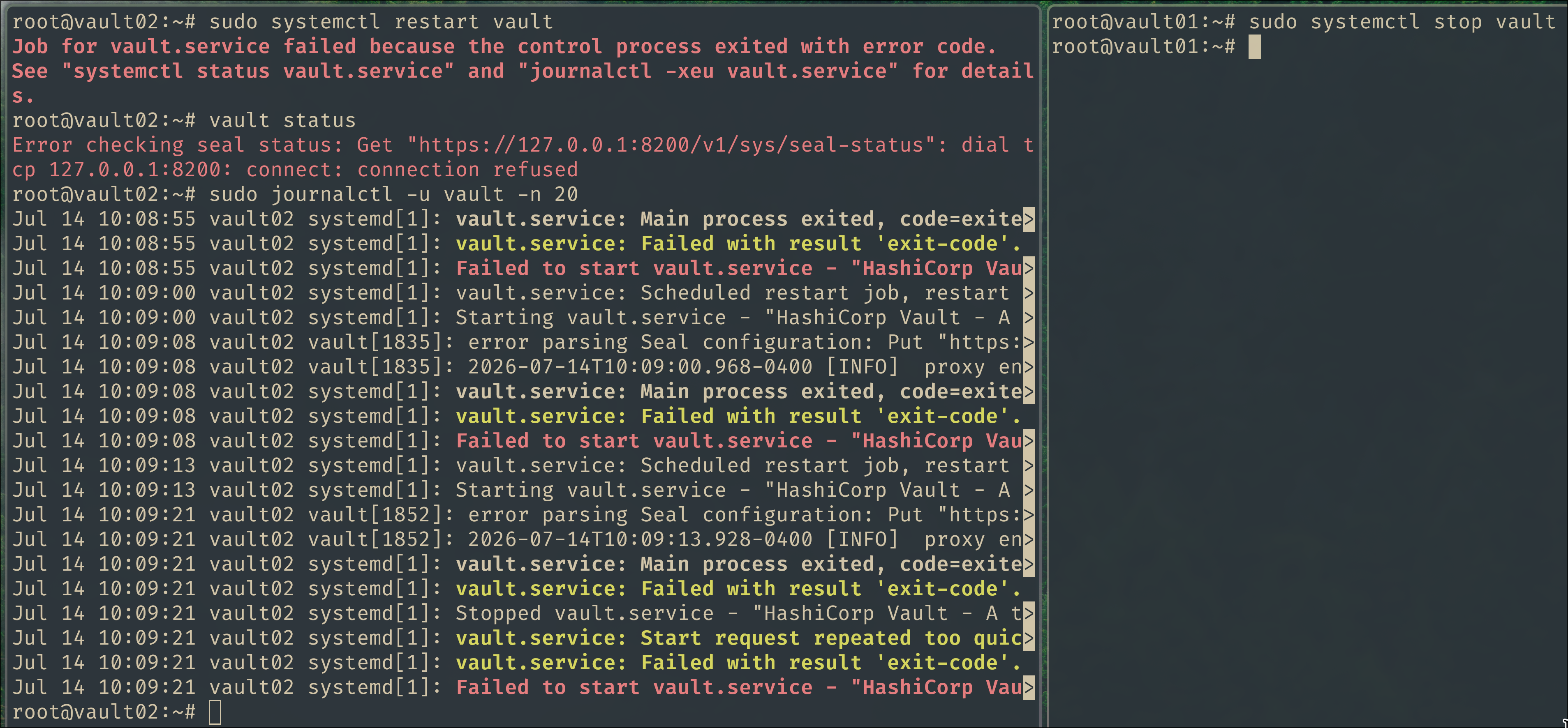
Bring VAULT01 back (it auto-unseals via Azure HSM), and VAULT02 recovers on its next restart:
# on VAULT01 - comes back unsealed via Azure HSM
sudo systemctl start vault

# on VAULT02
sudo systemctl restart vault && sleep 3 && vault status   # Sealed: false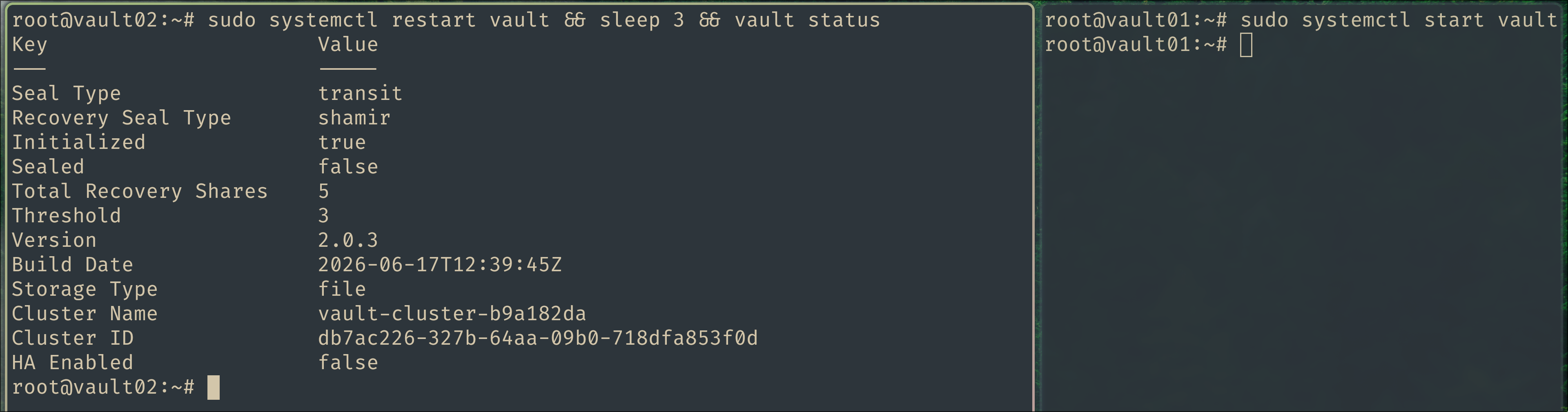
The catch worth naming: VAULT02 depends on VAULT01 being up and unsealed. In production the Transit-provider Vault is an HA cluster for exactly this reason - a single unseal provider is a single point of failure for everything it unseals.
Conclusion
Four moving parts, one coherent deployment:
- Auto-unseal turned “someone must run a key ceremony on every reboot” into “the server comes back on its own” - first via Azure Managed HSM, then Vault-to-Vault via Transit.
- LDAP auth moved identity out of Vault and into the directory, so group membership - not a pile of tokens - decides access.
- Policies enforced least privilege with a readable KV v2 layout: team isolation, a shared read-only area, an auditor role, and a delegated admin group that let us retire the root token.
The trade-offs are worth remembering: the HSM security domain is an offline-only disaster-recovery root, and a Transit unseal provider is a dependency you must make highly available.
A few corners were cut for the lab that you’d square off in production: point the LDAP auth at LDAPS (port 636) instead of cleartext 389; issue the Vault servers certificates with proper IP/DNS SANs so you can drop the tls_skip_verify and VAULT_SKIP_VERIFY flags; and note that the Vault service principal’s client secret expires (Azure default ~1–2 years) - when it does, auto-unseal silently stops working on the next restart, so rotate it well before then. But the shape here - cloud-rooted trust, directory-driven identity, path-scoped policies - is exactly how a real Vault deployment is run.